Connect Printful and sell print-on-demand
Create your free Printful account, connect it to Rivendare and add a card. When someone buys, the order reaches Printful on its own, and Printful makes it and ships it to your customer.
What you need
- An email to create your Printful account (it's free).
- A card (or balance in your Printful Wallet): Printful only charges you for each order when you sell.
- Your print-on-demand product on Rivendare, for example with “Create your brand”.
- Rivendare Payments turned on: orders only reach Printful if your store takes payments with Rivendare Payments.
Step by step
- 1
Create your free Printful account
Sign up to Printful with your email. Having the account costs nothing: Printful only charges you when it makes an order someone has bought from you.
- 2
Connect Printful to Rivendare
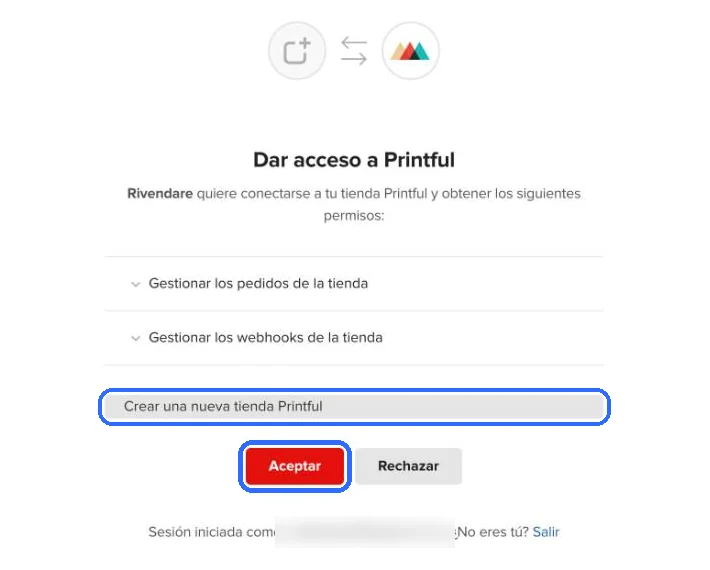
In Rivendare, go to Suppliers → Print on demand and tap “Connect Printful”. Printful asks for permission for Rivendare to send it your orders: leave the option to create a new Printful store (or pick your store, if you already have one) and confirm with the red button. The screenshots are in Spanish; in English the buttons are in the same place.
- 3
Check it says “Printful connected”
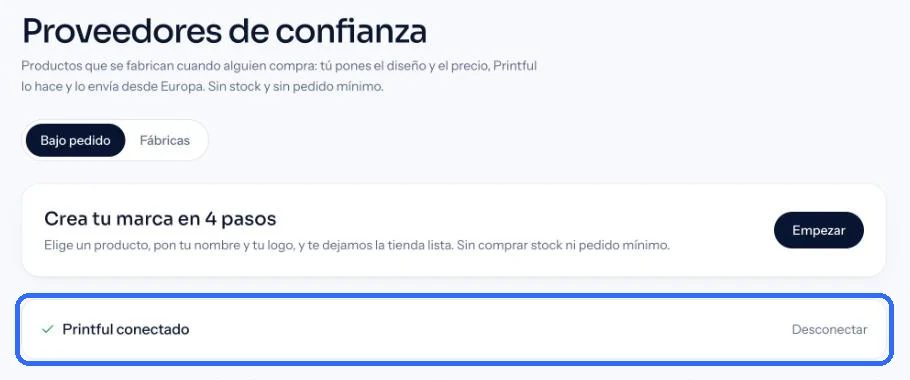
After accepting you come back to Rivendare. In Suppliers → Print on demand you'll see “Printful connected”. If one day it says the connection has expired, tap “Reconnect” and repeat step 2.
- 4
Add a card in Printful
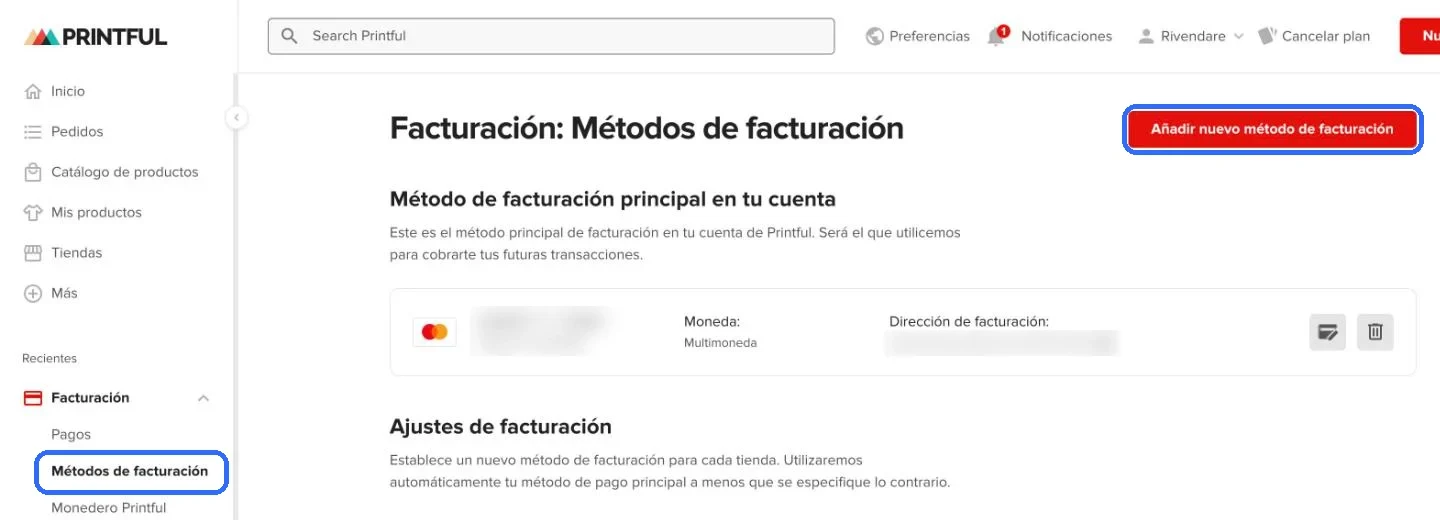
In Printful, open Billing → Billing methods and add a new billing method with the red button at the top. It becomes your main payment method: Printful uses it to charge you for each order when someone buys from you.
Open Billing methods in Printful
- 5
Turn on Payments and publish your store
Print-on-demand orders only reach Printful if your store takes payments with Rivendare Payments: that's how we know there's a sale. Turn it on in Payments, choose your plan and publish.
- 6
When someone buys from you
The order reaches Printful on its own, and Printful makes it and ships it to your customer; you follow it in Orders. If Printful can't charge you (for example, because you have no card), the order shows “Retry” in Orders: add the card and tap Retry.
Common mistakes
- Removing your card from Printful or letting it expire: orders stay unpaid and aren't made until you tap Retry.
- Disconnecting Printful while print-on-demand products are on sale: new orders wouldn't reach Printful.
- Placing the order by hand in Printful as well as the automatic one: it would be made and charged twice.
- Using your own payment link (PayPal, another Stripe…) in a store with print-on-demand products: Rivendare wouldn't know about the sale. That's why it can only be published with Payments.
Official help
Steps can change and vary by country. If something doesn't match, follow the official help.
Start your business freeOther guides
- Sell on Shopify
- Get paid on Shopify
- Sell on TikTok Shop
- Sell on Amazon
- Sell on Facebook Marketplace
- Instagram & Facebook ads
- How to sell online without a store
- Create a free online store: what's really free
- How to sell on Instagram, WhatsApp and TikTok
- What to sell online from home
- How to accept card payments as an individual